Your LinkedIn photo is the single most-viewed image in your professional life. It sits on your profile, next to every comment, in every recruiter search result and in every connection request. Yet most people upload a photo that is the wrong size, gets cropped awkwardly by LinkedIn's circular frame, or shows up blurry. This guide gives you the exact LinkedIn profile photo size for 2026, in pixels, aspect ratio and file limits, plus how to crop it so your face reads clearly at any scale.
Quick answer: LinkedIn profile photo size
- Recommended: 800 × 800 pixels (sharp on every device, including high-resolution displays)
- Minimum: 400 × 400 pixels (below this, LinkedIn upscales it and it looks soft)
- Aspect ratio: 1:1 (perfect square)LinkedIn then displays it inside a circle
- Maximum file size: 8 MB
- Formats: PNG or JPEG (PNG keeps text/logos crisp; JPEG is fine for photos)
The short version: upload a square 800×800 px PNG or JPEG with your face centred, and you will look sharp everywhere LinkedIn shows you.
Full LinkedIn image specifications table
LinkedIn uses several image slots and they are not interchangeable. Here is the complete 2026 reference:
| Image slot | Recommended size | Aspect ratio | Max file size | Formats |
|---|---|---|---|---|
| Profile photo (DP) | 800 × 800 px (min 400 × 400) | 1 : 1 | 8 MB | PNG, JPEG |
| Background / cover banner (personal) | 1584 × 396 px | 4 : 1 | 8 MB | PNG, JPEG |
| Company page logo | 300 × 300 px | 1 : 1 | 8 MB | PNG, JPEG |
| Company page cover | 1128 × 191 px | ≈ 6 : 1 | 8 MB | PNG, JPEG |
The two you personally control most are the profile photo (800×800) and the background banner (1584×396). Getting both right makes a profile instantly look more considered.
The circular-crop trap
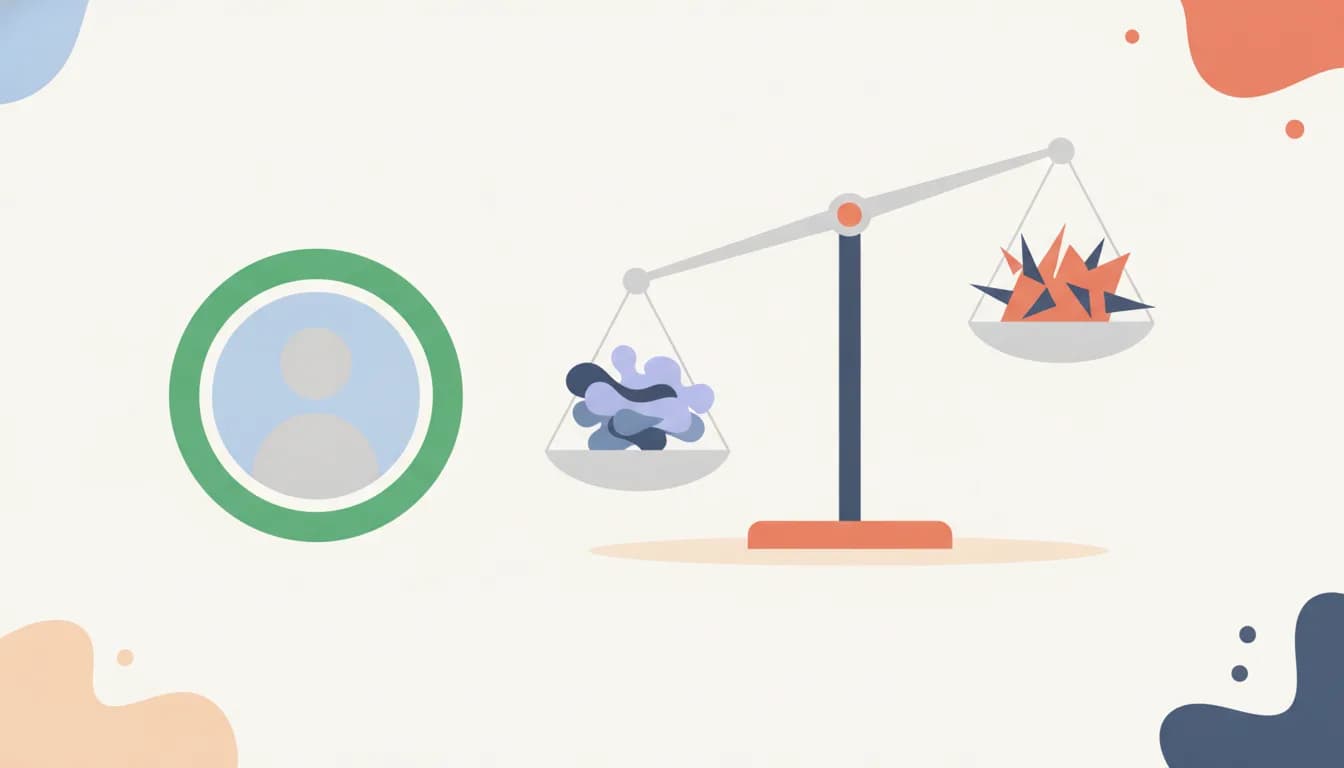
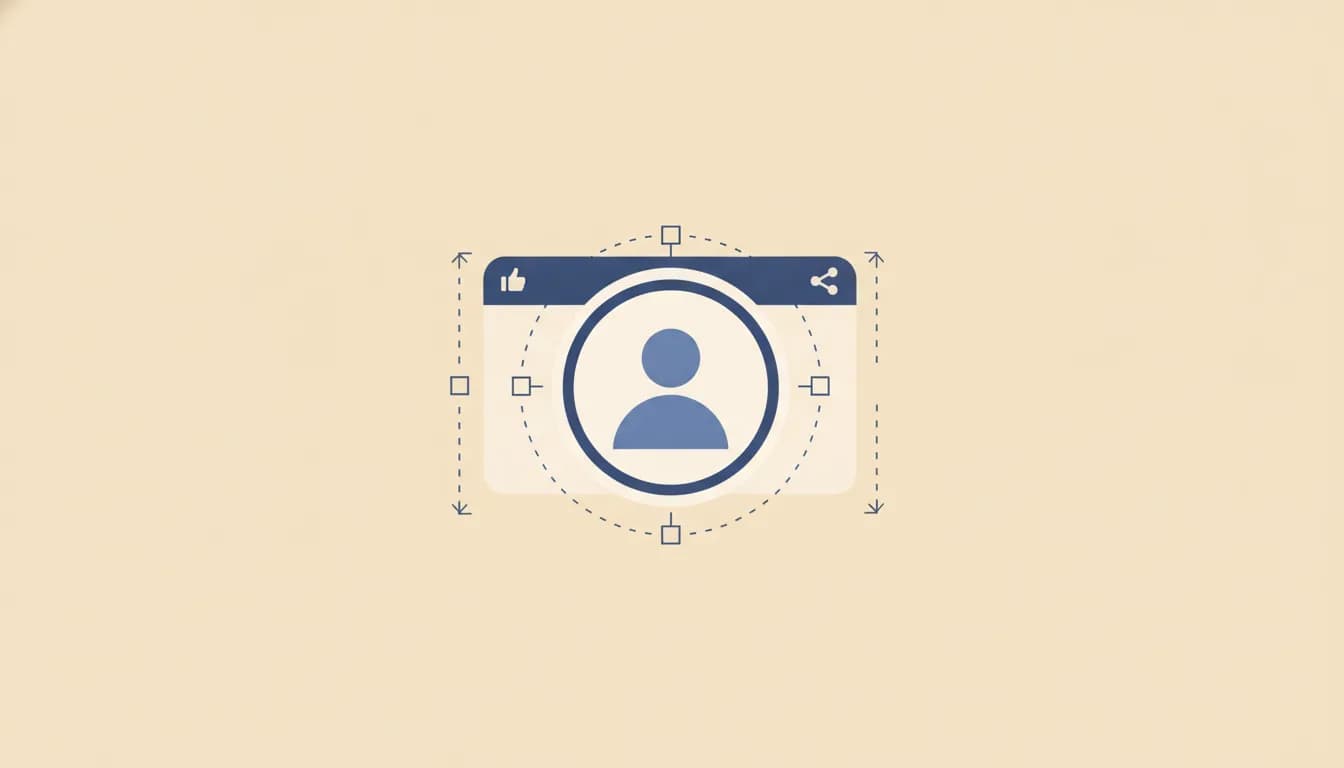
Here is the detail almost everyone misses: you upload a square, but LinkedIn displays a circle. The corners of your square image are cut off. If you crop tightly to the edges of a rectangular photo, part of your head or shoulders disappears inside the circular mask, or your face drifts off-centre.
To survive the circular crop cleanly:
- Centre your face horizontally and slightly above the middle line.
- Let your face occupy roughly 60% of the frame, close enough to be recognisable in a tiny thumbnail, but with enough breathing room that the circle does not clip your head.
- Leave margin at the top so the crown of your head is not cut, and keep the important content (eyes, smile) well inside the safe circular area.
- Avoid busy backgrounds and other people, at thumbnail size, only the centre of the circle is legible.
A good mental model: imagine a circle inscribed inside your square photo and make sure everything that matters lives inside that circle.
Resolution rules: why photos look blurry (and how to avoid it)
Blur on LinkedIn almost always comes from one of two mistakes:
- Uploading a photo smaller than 400×400 px. LinkedIn stretches it to fill the frame, and enlarging pixels that are not there creates softness. Always start at 400×400 or larger, 800×800 is the sweet spot.
- Upscaling a small crop. If you zoom into a wide group photo and export just your face, you may end up with only 150–200 px of actual detail, then blow it up. The result is mush. Start from a photo where your face is already large and sharp in the original.
Other resolution tips: export at the display size (do not upload a giant 4000px image and rely on LinkedIn to shrink it well, resize to 800×800 yourself for predictable sharpness), and prefer PNG if your photo has fine edges or you overlay any text. Keep the file under 8 MB.
How to resize an existing photo to LinkedIn spec
If you already have a good headshot that is the wrong shape, here is how to get it to 800×800:
- Crop to a square first. Use any phone photo editor or desktop tool and choose a 1:1 crop, placing your face centred and slightly high.
- Resize the square to 800 × 800 px. If your original is smaller than that, do not upscale, use it at its native size as long as it is at least 400×400.
- Check it in a circle. Preview how it looks masked to a circle; nudge the crop if your head touches the edge.
- Export as PNG or JPEG and confirm the file is under 8 MB.
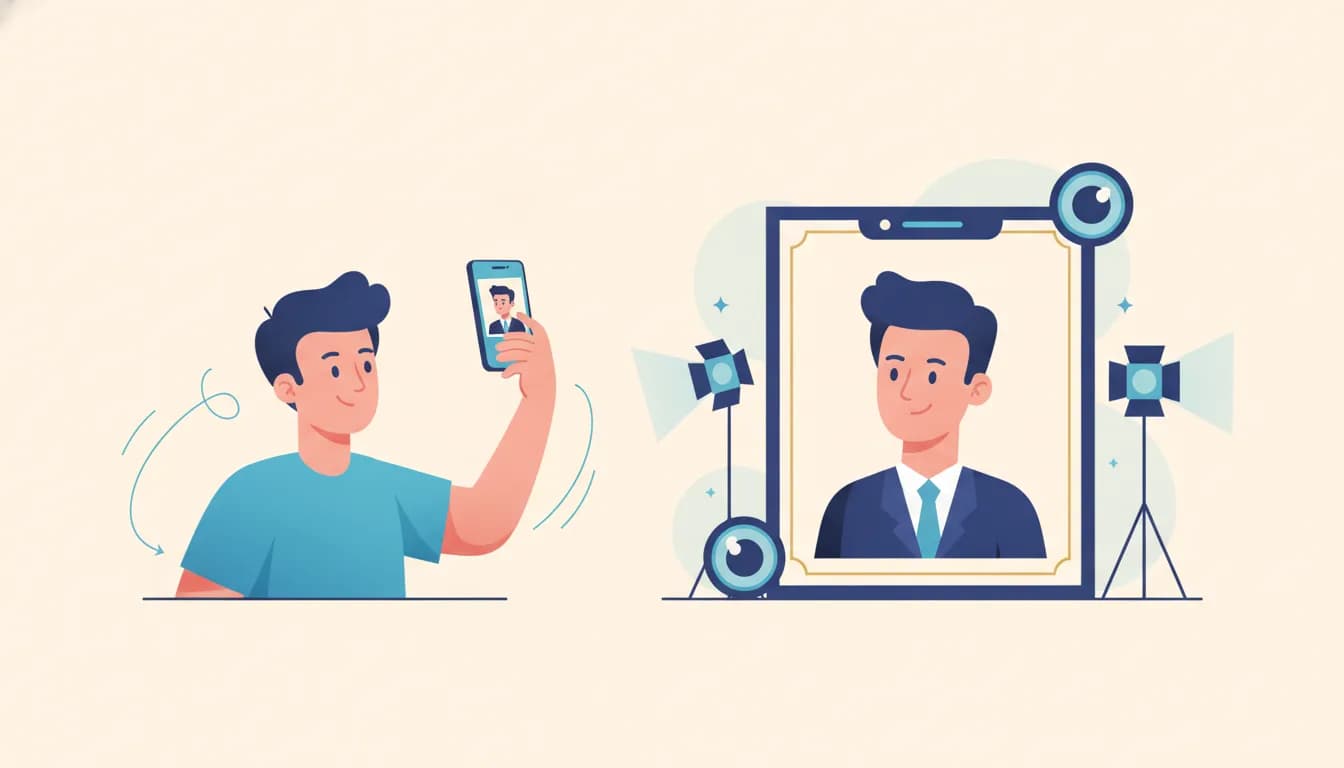
If your only usable photo is a casual selfie, or you do not have a clean, well-lit headshot at all, you can generate one instead of hunting for a photographer, see the CTA below.
What makes a good LinkedIn photo
Size is table stakes; the photo still has to work. In brief:
- Face the camerahead and shoulders framing, eyes visible.
- Soft, even lightingdaylight from a window is ideal; avoid harsh shadows.
- Plain or gently blurred background so you stand out.
- Approachable expressiona genuine, relaxed smile outperforms a stiff neutral look on LinkedIn (unlike a passport photo).
- Dress as you would for the role you want, not necessarily the one you have.
For the full checklist and examples, read the GoodSpace headshot guide.
No good photo? Generate a compliant 800×800 headshot free
You do not need a studio session to get a sharp, professional, correctly-sized LinkedIn photo. Upload one ordinary selfie to the GoodSpace AI Headshot Generator and it returns a polished, LinkedIn-ready headshot, square, high-resolution and centred for the circular crop, in about 30 seconds. It is free, needs no signup, and adds no watermark. Set it as your DP at 800×800 and you are done.
The same tool also produces resume photos and India passport, visa, Aadhaar and PAN sizes, so one selfie can cover your entire professional and documentation needs. Start with the headshot generator.
Frequently asked questions
What is the ideal LinkedIn profile photo size in 2026?
800 × 800 pixels, a 1:1 square, saved as PNG or JPEG under 8 MB. The minimum acceptable size is 400 × 400 px; anything smaller will look soft.
What aspect ratio does LinkedIn use for profile photos?
1:1 (a perfect square). LinkedIn then displays that square inside a circular mask, so keep your face centred and away from the corners.
Why is my LinkedIn photo blurry?
Almost always because the uploaded image was below 400×400 px, or you upscaled a small crop. Start from a sharp original where your face is already large, resize to 800×800, and re-upload.
What size is the LinkedIn banner / cover photo?
1584 × 396 pixels (a 4:1 ratio) for a personal profile background, up to 8 MB. Keep key text and logos toward the centre, since the left edge is partly covered by your profile photo on some layouts.
PNG or JPEG for a LinkedIn photo?
Both are accepted. Use PNG for the crispest edges (especially if the image includes text or a logo) and JPEG for regular photographs to keep the file size small.
How much of the frame should my face fill?
About 60%. Enough to be recognisable as a thumbnail, but with margin so the circular crop does not clip your head.
Can I make a LinkedIn photo without a photographer?
Yes. Upload a selfie to the GoodSpace AI Headshot Generator to get a compliant, 800×800, circular-crop-safe headshot free in about 30 seconds.
Also sorting out official documents? See our detailed guide on passport size photo dimensions in India (35×45mm).